

I’ve been slowly trying to reduce the amount of paper in my life.
When I receive a document that I might need later, I scan it, store it in Google Drive, and throw the paper away.
Bank letters, medical documents, invoices, administrative forms, random contracts… all of it goes through the same process.
If you’ve ever scanned a document with your phone or a scanner, you know the result. You end up with files called:
Scan_0037.pdf
Document.pdf
IMG_8421.pdf
Completely useless names.
When you accumulate hundreds of documents over the years, this becomes painful. Even if the content is searchable thanks to OCR, filenames still matter a lot. They are the first thing you see when you browse folders.
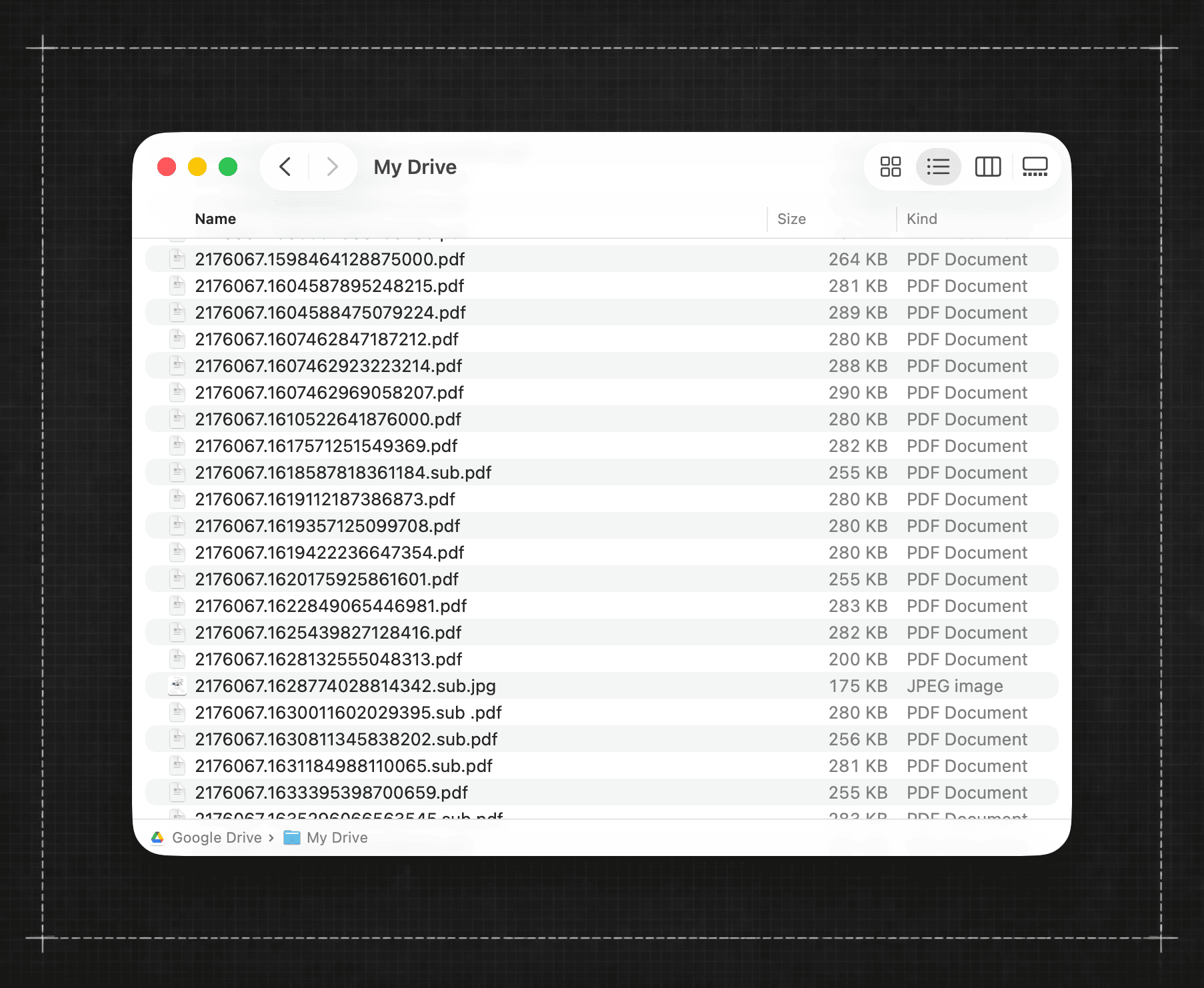
And strangely, even companies like Google, who are leaders in AI, still haven’t solved this simple problem in a satisfying way inside their products.
Recently I’ve seen a lot of small utilities appear that promise exactly this. They use AI to read a document and generate a clean filename.
The idea is good. The price less so. Some of these apps charge around $10 per month just to rename files.
That’s the kind of moment where I usually pause and think: there must be a simpler way. And it turns out there is.
Using Apple Shortcuts and Apple Intelligence, you can build this workflow yourself in a few minutes. It runs directly on your Mac, can work entirely locally, and it’s reliable.
Let me explain how it works.
The idea behind the workflow
The logic is very simple.
When you select a PDF, the shortcut does four things:
Extract the text from the document
Send that text to an AI model
Ask the model to generate a structured filename
Rename the file automatically
That’s it.
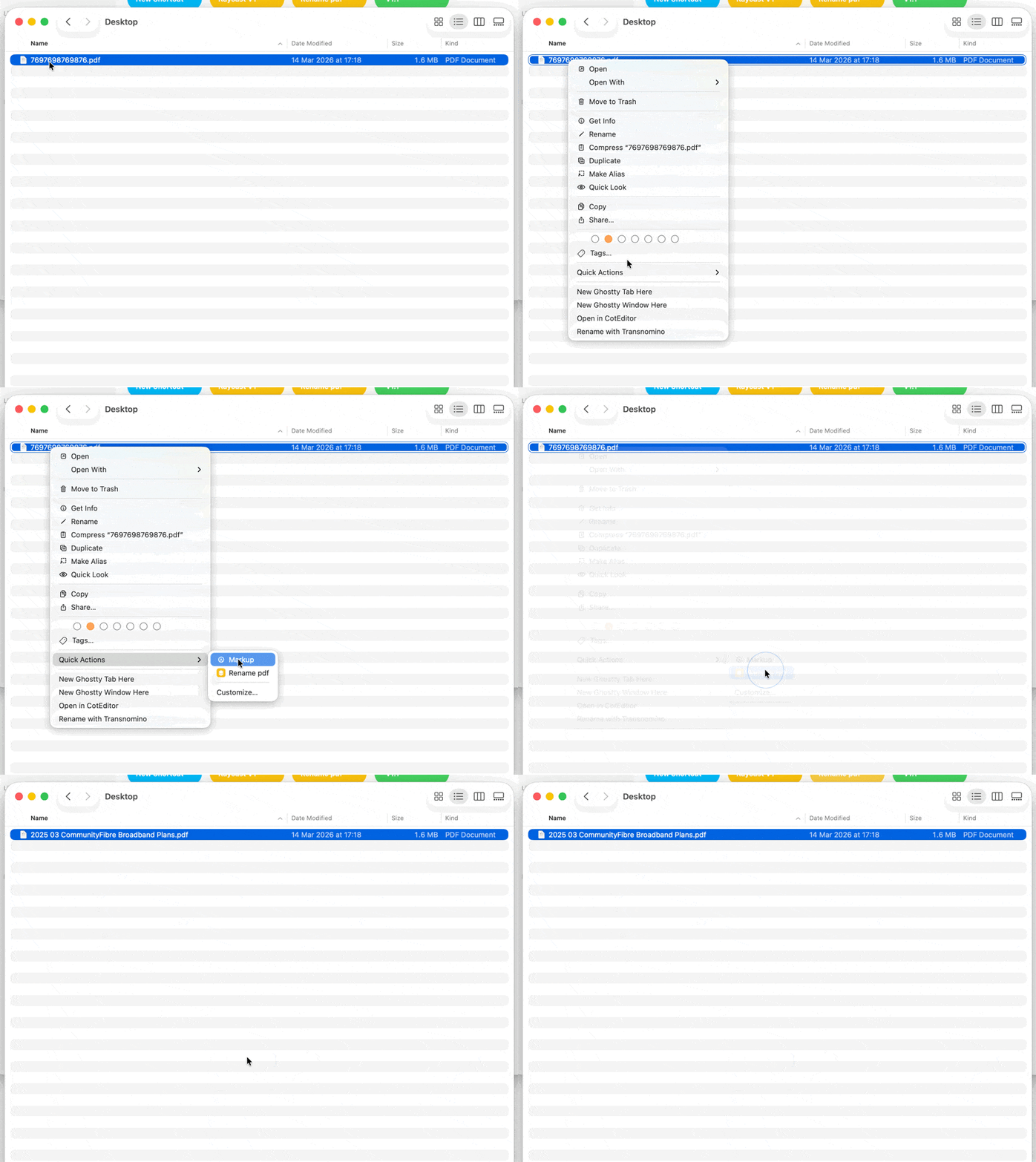
The only real trick is defining a clear naming format so the AI behaves consistently.
After some experimentation I settled on something like this:
YYYY MM Sender Topic
For example:
2024 11 HMRC Tax Letter
2023 09 EDF Electricity Bill
2024 02 NHS Blood Test Results
This format works well for several reasons.
Putting the date first keeps documents naturally sorted.
Adding the sender makes folders much easier to scan visually.
And the topic gives just enough context without making filenames too long.
The goal isn’t to describe the document perfectly. It’s simply to make it instantly understandable.
Building the Shortcut
Everything happens inside the Shortcuts app on macOS.
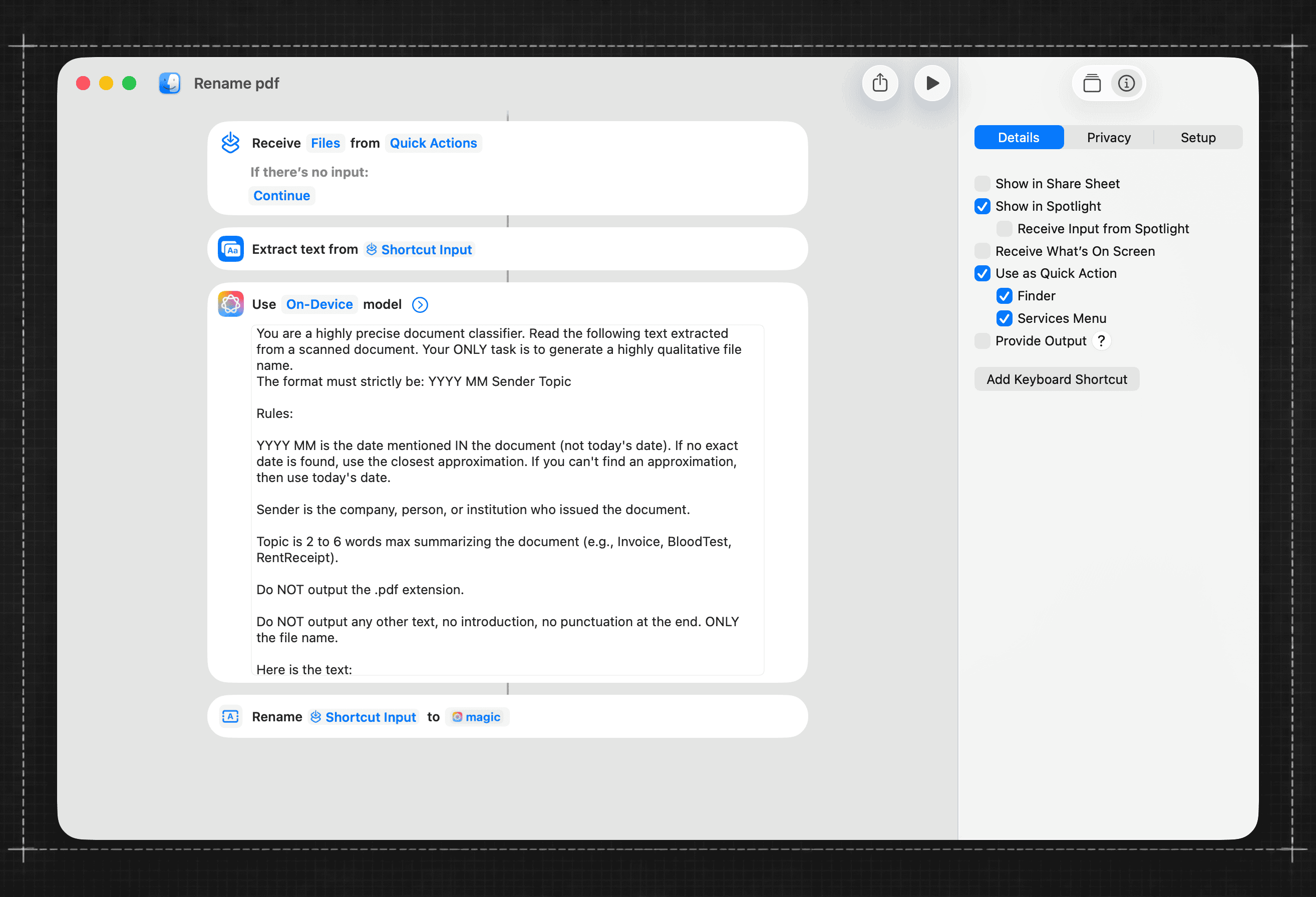
You don’t need any external software.
Step 1 : Receive the file
Open the Shortcuts app on your Mac.
Then click the “+” button to create a shortcut.
Make sure the shortcut is configured to receive files in Finder, and that Services Menu is enabled so the shortcut appears when you right-click a file.
Once saved, the shortcut will be available from Finder through:
Right click on a file → Services → your shortcut.
This allows the shortcut to run when you right-click a file in Finder and trigger it from the Services menu.
So the workflow becomes:
Right click → Services → Rename with AI.
Select : Receive Files from Quick actions.
Step 2 : Extract the text
Add the action:
Extract Text from File
This performs OCR on the document and produces raw text that the AI model can analyse.
Without this step, the AI wouldn’t know what’s inside the document.
Step 3 : Ask the model to generate the filename
This is where Apple Intelligence (or ChatGPT) comes in.
You add a model action and give it a very strict prompt so it behaves like a classifier rather than a chat assistant.
For example:
You are a highly precise document classifier. Read the following text extracted from a scanned document. Your ONLY task is to generate a highly qualitative file name.
The format must strictly be: YYYY MM Sender Topic
Rules:
YYYY MM is the date mentioned IN the document (not today’s date). If no exact date is found, use the closest approximation. If you can’t find an approximation, then use today’s date.
Sender is the company, person, or institution who issued the document. Use space between each word.
Topic is 2 to 6 words max summarizing the document (e.g., Invoice, BloodTest, RentReceipt). Use space between each word.
Do NOT output the .pdf extension.
Do NOT output any other text, no introduction, no punctuation at the end. ONLY the file name.
Use the same language for the filename as the docuemnt. Is the document is in french, the filename should be in french. If the document is in english, the filename should be in english.
The stricter the prompt, the more reliable the result.
Step 4 : Rename the file
Finally you add:
Rename File
And pass the AI response as the new filename.
At this point the shortcut already works.
Select a PDF, run the shortcut, and the document gets renamed automatically.
On-device vs Private Cloud Compute
One interesting detail inside Shortcuts is that you can choose which Apple model to use.
You have 3 options.
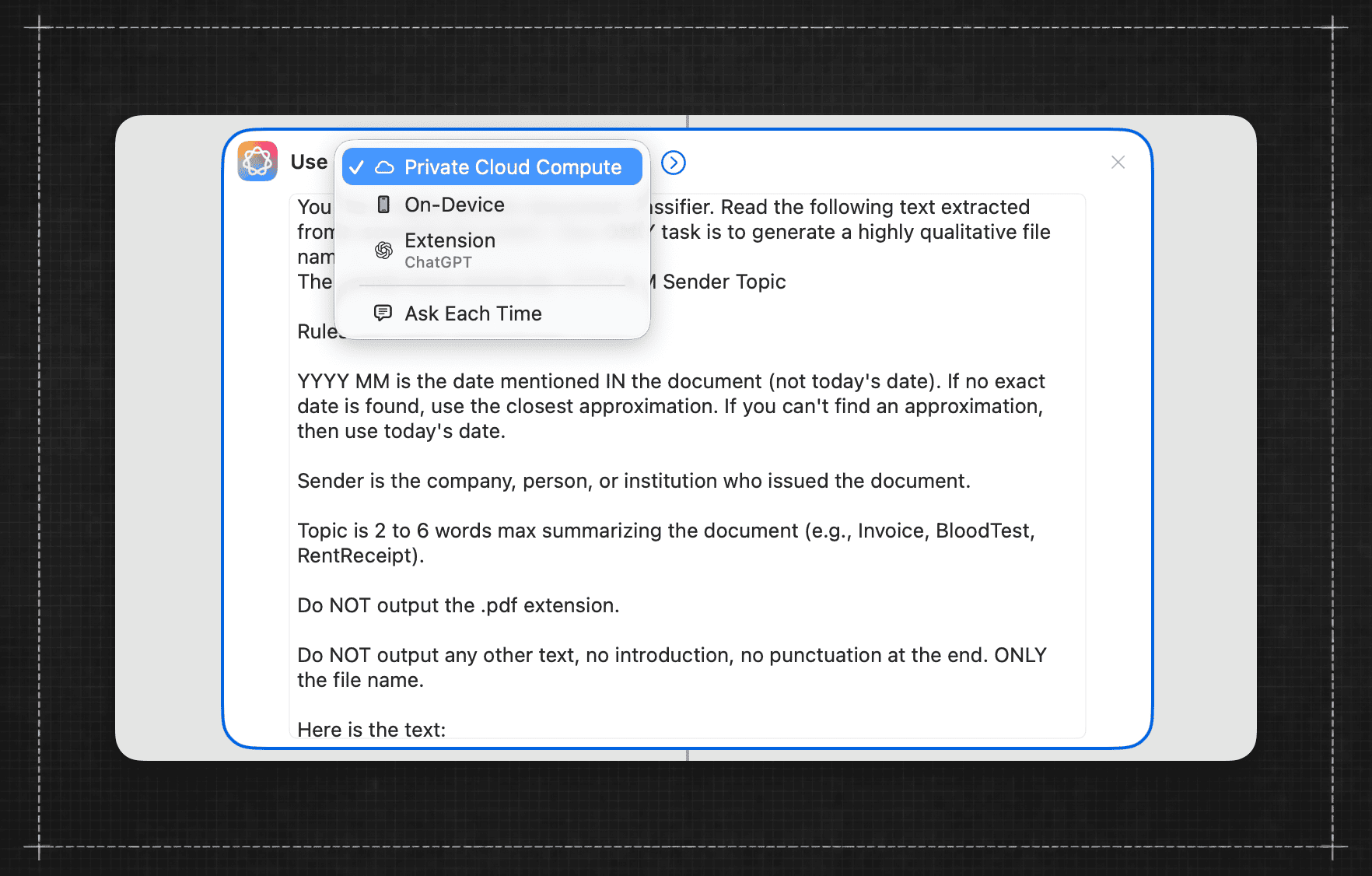
1. On-device model
This runs entirely on your Mac.
Advantages:
very fast
no data leaves your machine
works offline
For many documents this is already good enough, especially if the scan quality is decent.
2. Private Cloud Compute
Apple also provides a privacy-focused cloud model.
This can sometimes produce better results when:
the document is messy
the OCR text is noisy
the structure of the document is unclear
So the trade-off is simple.
On-device is faster and fully local.
Private Cloud Compute can be slightly more capable for complicated cases.
Both work well for this workflow.
3. ChatGPT
Shortcuts also allows you to use ChatGPT instead of Apple’s models.
I experimented with this as well.
ChatGPT sometimes produces slightly better filenames when the document is messy or ambiguous. In some cases it also feels a bit faster.
So in practice you have three possible setups:
On-device Apple model
Apple Private Cloud Compute
ChatGPT
They all work well.
The choice mostly depends on whether you prioritize privacy, reliability on difficult documents, or raw output quality.
Handling multiple files at once
The first version of the shortcut only works with one file.
That’s already useful, but the real improvement comes when you add a loop.
Inside Shortcuts you can wrap the workflow in:
Repeat with Each
The logic becomes:
Receive selected files
Repeat with each file
Extract text
Generate filename
Rename file
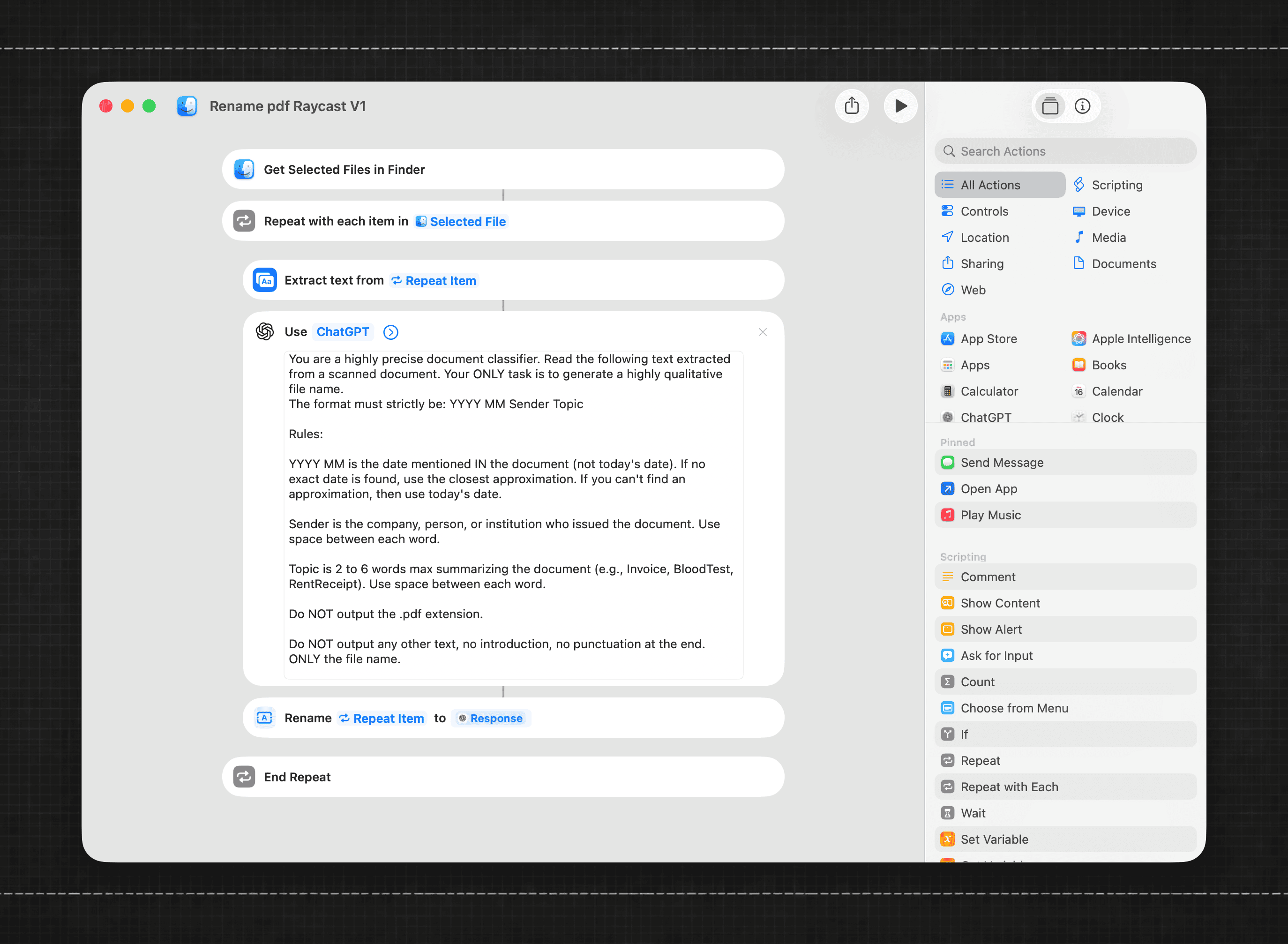
Once you do this, you can select ten scanned documents at once, run the shortcut, and watch them get renamed automatically.
That’s where it starts becoming really powerful.
Integrating the workflow with Raycast
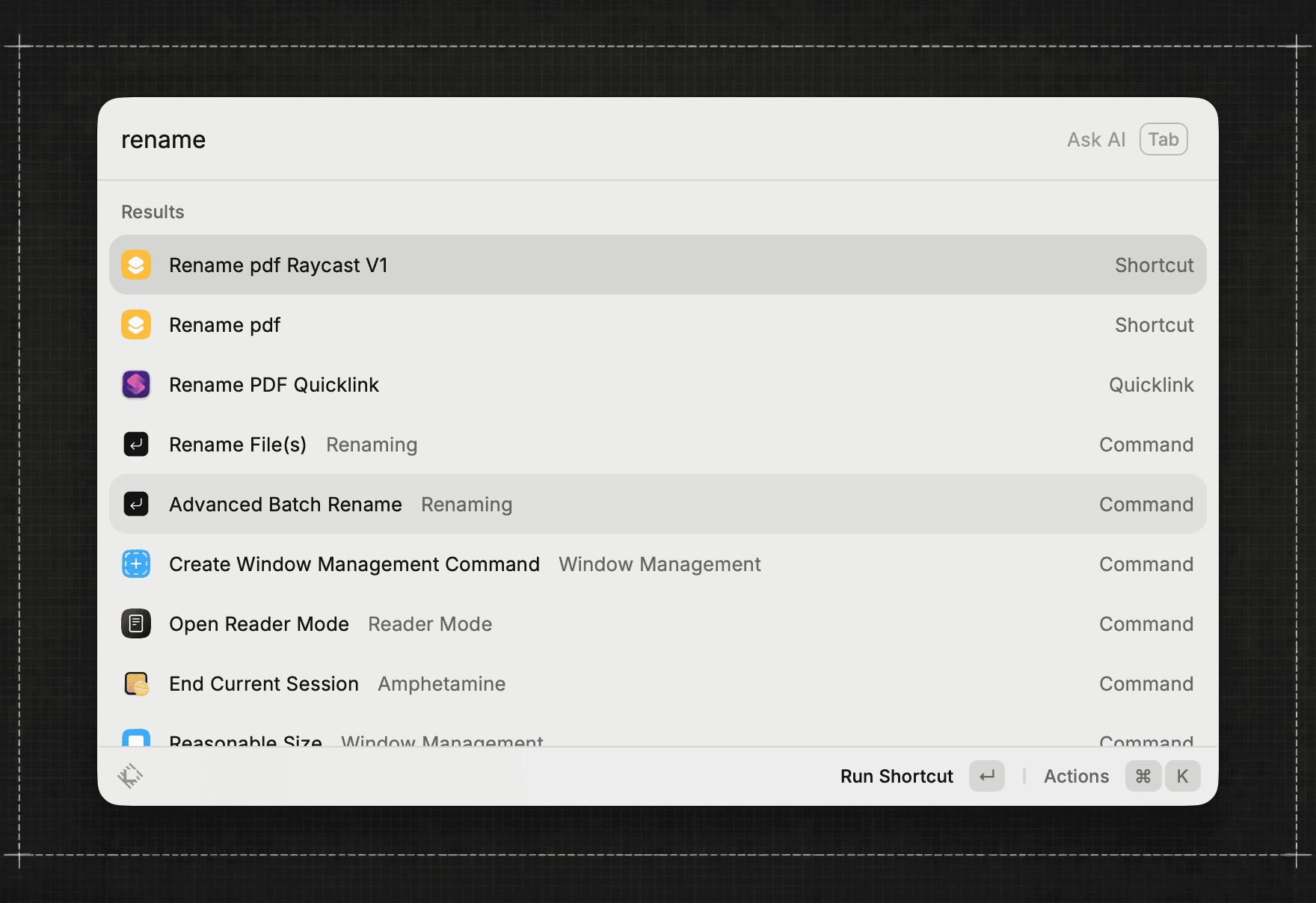
There is one final improvement that made the workflow even better for me.
Instead of triggering the shortcut from Finder, I run it directly from Raycast.
Raycast can launch macOS shortcuts natively.
But there is one small change needed.
Instead of starting the shortcut with:
Receive Files from Quick Actions
you replace it with:
Get Selected Files in Finder
This allows the shortcut to detect which files are currently selected in Finder when Raycast launches it.
So the workflow becomes extremely simple.
Select files in Finder
Open Raycast
Run the shortcut
And the files are renamed instantly.
For someone who already uses Raycast as a command centre for the Mac, this feels much more natural than right-click menus.
Why I find this interesting
What I like about this setup is not just that it works, it’s that it shows something broader.
We’re entering a moment where small AI-powered utilities are appearing everywhere, often charging subscriptions for very narrow features.
Sometimes those tools are useful. But sometimes the underlying capability already exists in the operating system.
In this case, macOS already gives you:
automation
OCR
local AI models
cloud AI models
file system integration
All the ingredients are already there, you just have to connect them.
This also works for other things
Once you understand the pattern, you can apply it to many other tasks.
For example:
Automatically rename images with SEO-friendly names
Classify documents by category
Clean up messy archives
The core logic is always the same.
Extract information from the file, ask a model to interpret it, and apply a structured action.
Renaming documents is simply the easiest place to start.